Your notes belong on your PDF.
Add a comment to a document, circle a detail or sign a page. CleanEdit PDF keeps the original pages and gives you a downloadable copy with your marks.
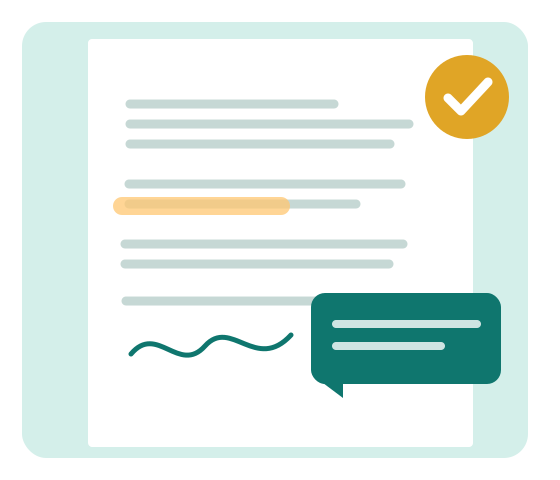
The marks you reach for most
Open a PDF once and move between tools without changing apps. Every added mark remains editable until you download the file.
Write and edit
Place text anywhere on a page, choose a font and move the note as you review.
Highlight and cover
Mark an area in color or cover it visually. Covered text remains in the source PDF; this is not secure redaction.
Draw and point
Use a pencil, arrow, line, rectangle or circle to explain a detail.
Sign a page
Draw a signature or insert an image. This is a visual signature, not a cryptographic digital signature.
Add an image
Place a PNG or JPEG on the page and resize it without changing the original PDF.
Undo and export
Undo a mark, clear added annotations and download a PDF that includes your work.
From file to finished PDF
- 1
Open your document
Choose a PDF from your device or drop it into the editor. There is no account to create.
- 2
Make your marks
Add notes, highlights, shapes, images or a signature. You can adjust them before export.
- 3
Download the result
Save an annotated copy. The editor does not upload your PDF to our server.
Choose a PDF task
How to add notes to a PDF
Write an editable note on any page and export it with the document.
How to draw on a PDF
Mark diagrams with a pencil, arrow, line, rectangle or circle.
How to highlight a PDF
Add colored, translucent area highlights to a PDF page.
How to cover an area in a PDF
Cover an area visually while keeping the PDF’s original data unchanged.
How to remove added PDF annotations
Erase your own marks one at a time or clear them all with Undo.
How to sign a PDF visually
Draw or upload a signature image and place it on a PDF page.
Find the right path
Try the editor here
The real PDF editor is embedded below. For more room, open it in a separate tab.
Questions before you open a file
Does CleanEdit PDF change the original PDF?
No. Your marks and text edits go into a new downloaded copy. The source file stays on your device.
Can I edit text already inside a PDF?
Yes. Edit PDF text changes the document’s own words and keeps their font where it can. The change is made on our server, so the web editor asks before it sends the file there. A scan has no text to edit, but the web editor can recognize it on our server once you agree, so it becomes searchable.
Is the white cover tool safe for confidential data?
No. Whiteout only hides text visually. The covered content can still be extracted from the PDF.
Do I need to install anything?
The web editor works in a desktop browser. A Chrome extension is also being prepared for opening PDF links directly.
Annotate PDFs you find in your browser
The Chrome extension adds an action for PDF links, supported Google search results and PDFs open in Chrome's viewer. It asks for access to a PDF source when you choose to open that file.
Chrome extensionThe extension is being tested locally. A public installation link will appear after the store review.